




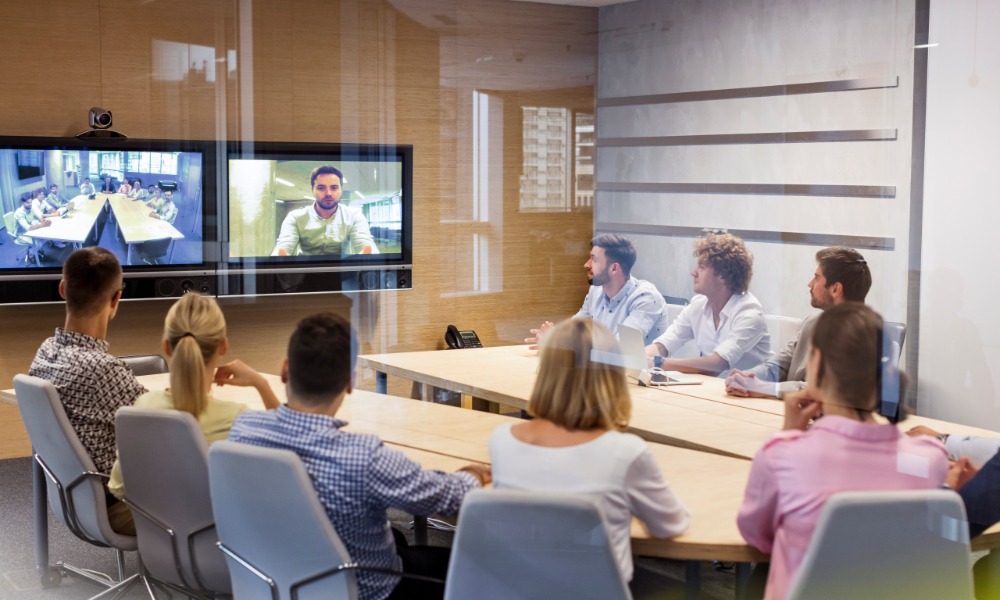
A conference room should make collaboration easier, not turn every meeting into a troubleshooting session. When employees waste time searching for adapters, reconnecting displays, or fighting with unstable video calls, technology starts working against the team instead of supporting it.
Better connectivity starts with a thoughtful setup. Companies need to consider how people join meetings, which devices employees bring into the room, how teams share content, and what connections the equipment requires. A reliable conference room doesn’t need endless gadgets. It needs compatible hardware, organized connections, and a setup that people can understand without calling IT every time they meet. These tips will help any business improve conference room connectivity.
Start With the Room’s Needs
Before adding new technology, consider how employees use the space. A small room for quick team discussions needs a different setup than a large conference room that hosts client presentations and hybrid meetings.
Consider how many people typically attend, which devices employees bring, and whether teams regularly connect with remote participants. Some rooms need robust video conferencing capabilities, while others rely more on screen sharing and presentations.
The room’s purpose should guide technology choices. Buying equipment first and trying to make everything work together later often creates unnecessary compatibility problems.
Standardize Common Connections
Employees bring laptops, tablets, and other devices from different manufacturers, so conference rooms often need to accommodate several connection types. USB-C has become common, but many devices still rely on HDMI, DisplayPort, or other interfaces.
Standardizing a few primary connection options can reduce confusion. Instead of filling a conference table with random adapters and cables, choose connections that support the devices employees use most often.
Keep any necessary adapters in one clearly labeled location. Employees shouldn’t have to search drawers or borrow equipment from another room just to connect a laptop.
Choose the Right Display Cables
A high-quality display can’t deliver its best performance if the connection can’t support the video signal. Resolution, refresh rate, cable length, and device compatibility can all influence display performance.
Conference room displays need the right cables to handle the resolutions and features that teams expect. An older HDMI cable, for example, might limit performance when employees connect newer computers or higher-resolution displays.
Cable length also deserves attention. Long cable runs can create signal problems when teams use equipment that doesn’t support the required distance. Choose cables and signal solutions that match both the devices and the physical layout of the room.
Improve Wireless Screen Sharing
Wireless presentation systems can make meetings run more smoothly because employees can share content without passing cables around the table. However, wireless systems only help when they work reliably.
Choose a platform that supports the operating systems employees commonly use. A system that works beautifully on one type of laptop but struggles on another will create frustration.
Teams should also know how to connect before an important meeting begins. Simple instructions near the display can help first-time users join quickly without relying on someone who already knows the system.
Wireless screen sharing works especially well when employees need to switch presenters frequently. Rather than disconnecting and reconnecting hardware, participants can share screens using the same system.
Strengthen the Network
Modern conference rooms rely heavily on network performance. Video calls, wireless presentations, cloud applications, and collaborative tools all compete for bandwidth.
A weak Wi-Fi signal can cause frozen video, delayed audio, and dropped connections. These interruptions make conversations harder and can leave remote participants feeling disconnected from the meeting.
Check wireless coverage inside the room rather than assuming nearby access points provide sufficient performance. Walls, equipment, room location, and the number of connected devices can affect signal quality.
For equipment that remains in the room, a wired Ethernet connection can provide greater stability. Conference computers, video conferencing systems, and other fixed devices often benefit from a direct network connection rather than relying entirely on Wi-Fi.
Simplify Table Connections
Conference tables often become the center of connectivity problems. Cables disappear under furniture, adapters get lost, and employees struggle to figure out which connection belongs to which device.
Organized table connections make meetings easier. Consider using integrated cable access points, tabletop connection boxes, or neatly routed cables that employees can reach without crawling under the table.
Keep frequently used connections accessible while hiding unnecessary cable clutter. Good organization also reduces wear because employees won’t constantly tug cables from awkward angles.
Clear labels can help when the room has several similar-looking connections. Employees should know which cable connects to the display, conferencing system, power source, or network without testing each option.
Support Hybrid Meetings
Hybrid meetings introduce another layer of connectivity needs. The room has to connect local participants with remote attendees while managing video, audio, screen sharing, and collaboration tools.
Start with a reliable conferencing computer or a dedicated room system. Employees should have a consistent way to start meetings rather than building a new setup every time someone schedules a call.
Camera placement also affects the experience. Position cameras so remote participants can see the people in the room without forcing everyone to crowd around one end of the table.
Microphones need thoughtful placement as well. Remote attendees should hear everyone clearly, including people sitting farther from the screen. A strong connection won’t help much if poor audio makes half the conversation difficult to follow.
Reduce Adapter Dependence
Adapters solve compatibility problems, but too many adapters can create new ones. Employees may connect several accessories together just to reach the display, which adds more potential failure points.
Where possible, provide direct connections for the most common devices. If employees frequently use USB-C laptops, for example, consider supporting USB-C directly rather than relying on a chain of adapters.
When adapters remain necessary, choose reliable models that support the required resolution and features. Keep backups available for commonly used connections since small accessories can disappear easily.
Add Convenient Power
Connectivity problems don’t always involve data connections. Employees also need access to power during longer meetings.
A laptop with a low battery can quickly become a distraction, especially when the nearest outlet sits across the room. Add convenient power access near seats, along the conference table, or through integrated charging ports.
USB-C power delivery can make certain setups even more convenient because a single connection can support charging, video, and data. However, equipment must support the required capabilities, so check device specifications before relying on a single-cable setup.
Keep Firmware and Software Current
Conference room systems rely on software just as much as hardware. Video platforms, wireless presentation tools, docking stations, and room control systems may need regular updates.
Outdated software can create compatibility issues when employees update their laptops or conferencing applications. IT teams should include conference room technology in routine maintenance instead of waiting until users report a problem.
Test major updates before important meetings whenever possible. A quick check can reveal login issues, changed settings, or new compatibility problems before a room fills with participants.
Create a Consistent User Experience
Employees shouldn’t have to learn a completely different system every time they enter another conference room. Consistency can dramatically reduce confusion across an office.
Use similar connection types, control systems, and conferencing platforms whenever practical. If every room follows the same basic setup, employees can move between spaces with greater confidence.
Simple written instructions can also help. Keep the directions short and focus on the steps employees need most often, such as connecting a laptop, starting a video call, sharing a screen, or adjusting the display.
Build a Room People Can Trust
Reliable conference room connectivity comes from making dozens of small choices work together. Strong network coverage, compatible cables, organized table connections, reliable conferencing equipment, and simple controls all contribute to a smoother experience.
The best setup fades into the background once a meeting starts. Employees can connect their devices, share information, and communicate with remote participants without focusing on the technology. When teams trust the room to work, they can spend less time solving connection problems and more time having productive conversations.
About The Author

Got a Questions?
Find us on Socials or Contact us and we’ll get back to you as soon as possible.